
Managing and analyzing utility data efficiently and effectively is a crucial task for any utility organization. With the advent of the Esri Utility Network, utility companies have powerful tools at their fingertips to help streamline data management tasks. One of the key features of the Utility Network model is the ability to perform network traces, which can help identify where a problem exists within the network.
Setting up reusable trace configurations allows you to exclude unimportant objects from your trace and create templates for different use cases, thus empowering you to perform necessary traces quickly and easily while helping you better understand the relationships between different components of your utility network.
In this article, we will explore the benefits of creating reusable trace configurations that support utility business processes as well as demonstrate how they can help you identify issues more quickly to make more informed decisions about your network organization wide. Learn how to set up and use trace configurations in ArcGIS Pro by following the embedded video at the end of this article. So, let’s dive in and learn more about how trace configurations can help you effectively manage and analyze your utility data.
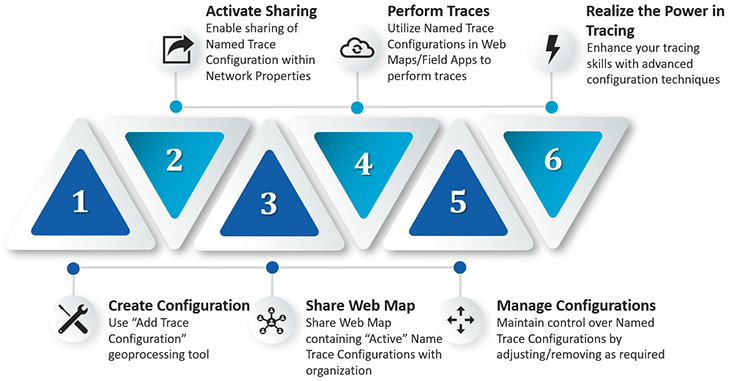
Content Overview

Benefits of Creating Trace Configurations
Trace configurations benefit your utility GIS users for several reasons. First, they help you identify the proper objects and attributes to trace. This is especially useful for larger utility networks where there are hundreds or even thousands of objects to choose from. Using trace configurations, you can exclude objects that are not important for the trace, which can help you narrow down the results and identify issues more quickly.
Trace configurations also allow you to set up and save specific trace scenarios for different use cases. For example, you may need to perform a trace for outage isolation, while at other times, you may need to run a trace for asset management. By creating and saving different trace configurations for each scenario, you can quickly and easily perform the necessary trace without having to configure the trace settings every time.

Empowering the Enterprise
An additional benefit of building trace configurations is adopting an Enterprise approach that encourages sharing and collaboration via your utility’s Web Maps and Web Viewers. By applying and sharing trace configurations, you not only enhance your team’s efficiency but also reduce errors. When colleagues can access pre-established trace configurations, it streamlines the process of organizing and managing data effectively. This shared knowledge can highlight potential gaps in data, enabling your team to prioritize data collection efforts more efficiently.
Furthermore, trace configurations cultivate knowledge exchange and innovation within your utility organization. Embracing this Enterprise approach can lead to enhanced problem-solving and optimized decision-making across the entire organization.
Key Players in the Enterprise
As demonstrated in Figure 3, several departments in your utility organization use network traces to perform daily functions and can benefit from applying reusable trace configurations, including customer service, data management, field, planning, and system administration.
- Customer Service: uses the “Custom Outage” trace configuration to provide accurate and timely information to customers regarding the extent of an outage and estimated restoration time
- GIS Data Management: creates and manages the “Integrity Management” trace configuration by defining parameters to identify high-risk sections, potential hazards, or areas lacking physical inspections
- Field Operations: finds assets, conducts inspections, and conducts necessary maintenance tasks using the “Asset Management” trace configuration
- Planning Department: creates and manages the “Asset Management” trace configuration by defining parameters to identify the locations and conditions of assets, aiding in network design, capacity planning, and asset maintenance strategies
- GIS System Administration: creates and manages trace configurations as well as shares the trace configurations with relevant departments and users according to the utility organization’s specific needs and goals

Recommended Trace Configurations
For enhanced utility network management and utility operations, we compiled a list of high value trace configurations for gas and electric utility operators to implement. These include the following examples.
Gas Trace Configurations
Integrity Management: maintains the integrity of the pipelines by identifying and locating any areas of potential risk
This may include high-risk sections of pipelines, potential hazards such as construction sites, and areas where records and/or physical inspections are lacking.
Customer Outage: efficiently identifies all customer meter sets affected in an emergency
Electric Trace Configurations
Asset Management: tracks assets like transformers, breakers, and other equipment
Fault Detection: identifies faults in the electric network and isolates the location to minimize the impact on customers
Start Creating Trace Configurations Today!
Building reusable trace configurations for your utility network can help you more effectively manage and analyze your utility data, thus enabling swift problem identification and informed decision-making for your utility organization. By identifying the appropriate objects and attributes to trace, setting up specific trace scenarios, and defining properties, you can save time and resources in identifying and resolving network issues. Conversely, bypassing trace configurations can result in longer resolution times and further network disruptions.
UDC’s Theresa Schuenke demonstrates how to create, share, and use reusable trace configurations for your organization.
Don’t wait any longer to take advantage of your utility network! Start creating business process-based trace configurations today that benefit your entire organization. Contact UDC for questions or help with setting up your reusable trace configurations.
Trace Configuration FAQs
Q: Can anyone in the organization utilize the shared trace configurations?
A: The trace configuration is included in the service definition of the published web map. Meaning, any portal user can work and view trace configurations within the network if they have access to a web map where the trace configuration is set to “Active” in the Sharing tab of the Network Options.
Q: Do users require a specific license to access the trace configurations and use them on a Web app, viewer, or Field Maps?
A: Yes, users must have the ArcGIS Utility Network user type extension.
Q: Are the trace configurations managed by the Enterprise Portal?
A: The Portal User that creates the trace configuration is the owner of that configuration. However, the Utility Network Owner or other Portal Administrator can manage all created trace configurations via the ArcGIS Pro Map Network Options, enabling them to alter or delete configurations created by other users.
If your organization has more than one utility network, then trace configurations can be exported from one network and imported into another by the Portal Utility Network Owner/Portal Administrator.
Q: How do you reference the trace configurations in a Web app, viewer, or Field Maps?
A: For Web Map or Web Viewer, the Utility Network Trace widget can be used. First, associate the trace widget to your Web Map. You can then choose from the listed trace configurations. If you do not have any trace configurations published to your Web Map, the trace widget will display a message alerting you that you do not have a map with the correct parameters.
In Field Maps, look for the option of “Enabling a trace configuration” in the pop-up display window when an asset is selected.